If you have a list of products you use or sell, you can import them all at once instead of adding them one by one.
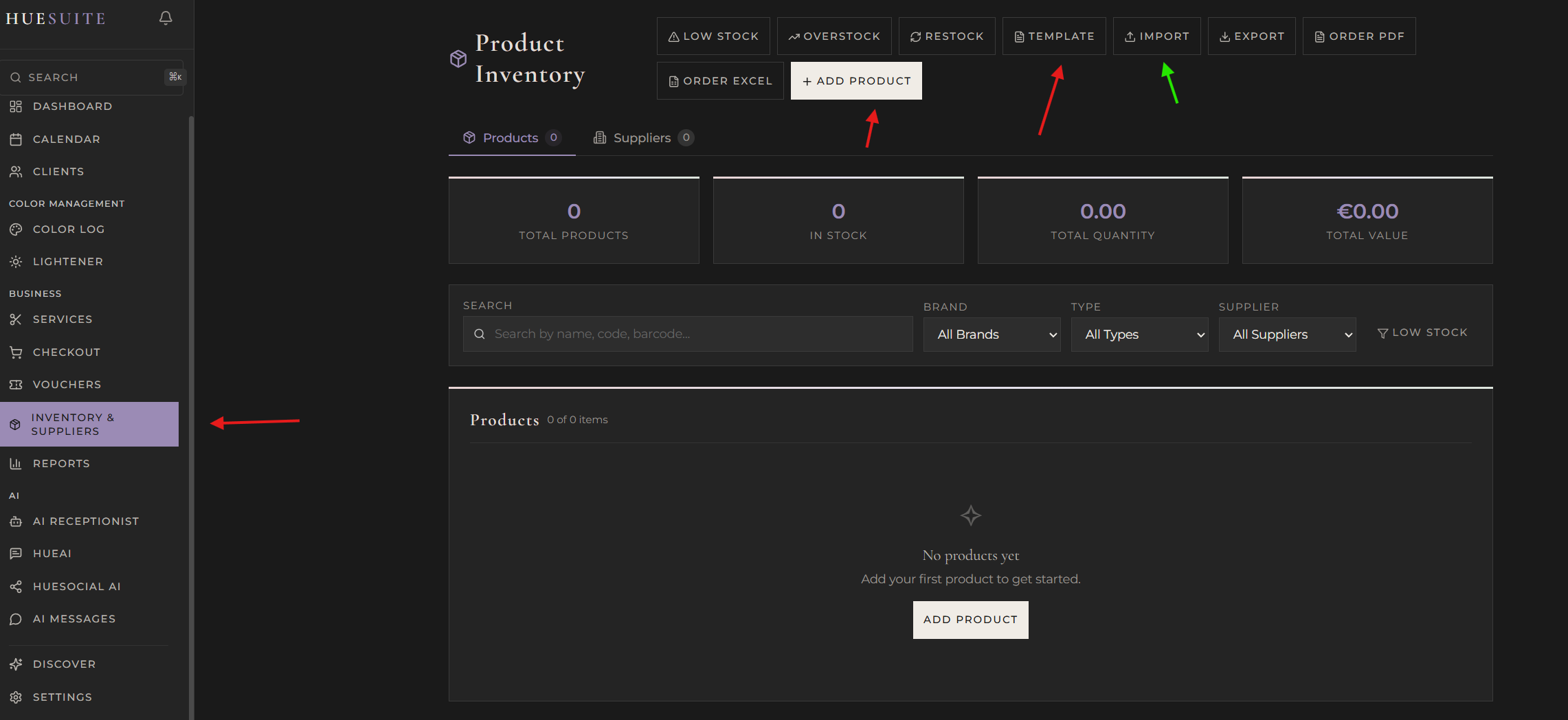
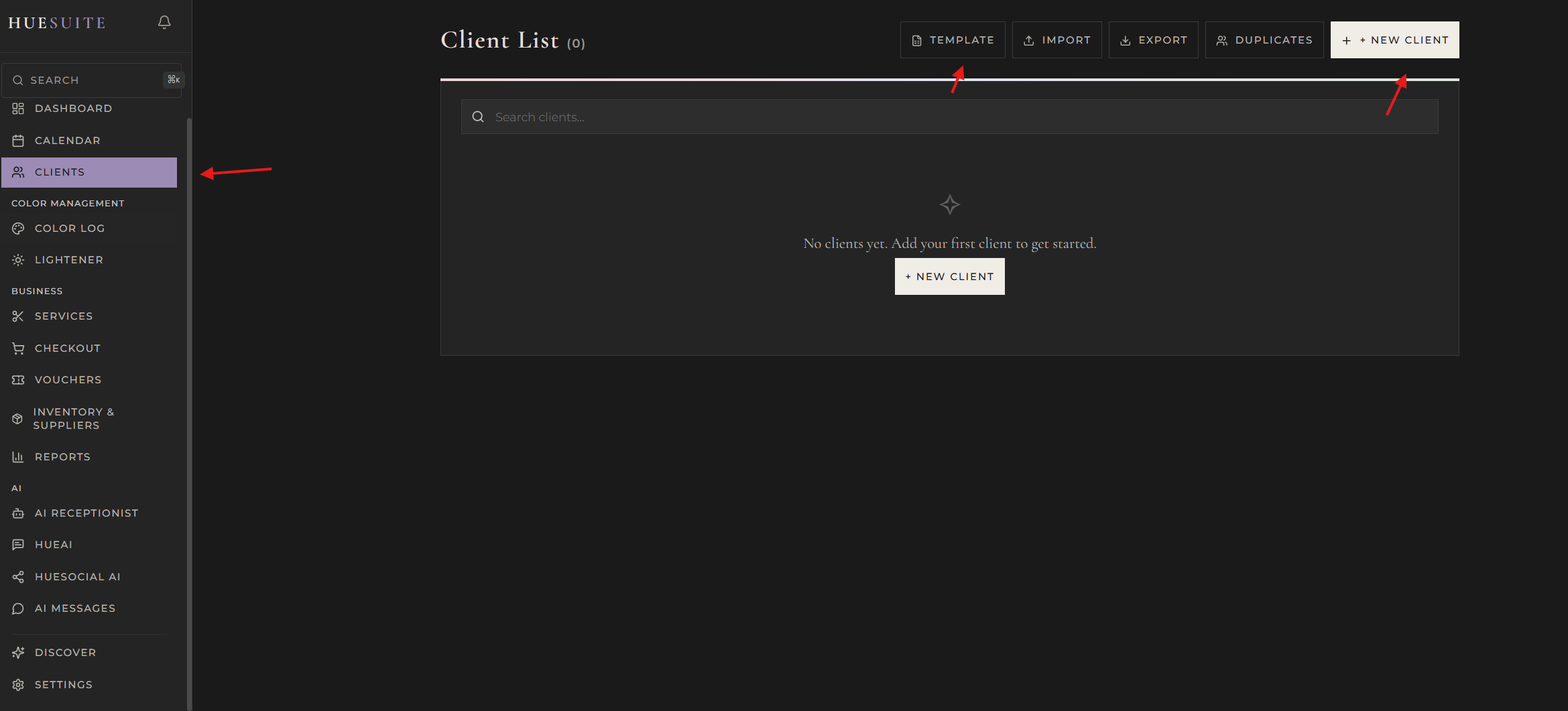
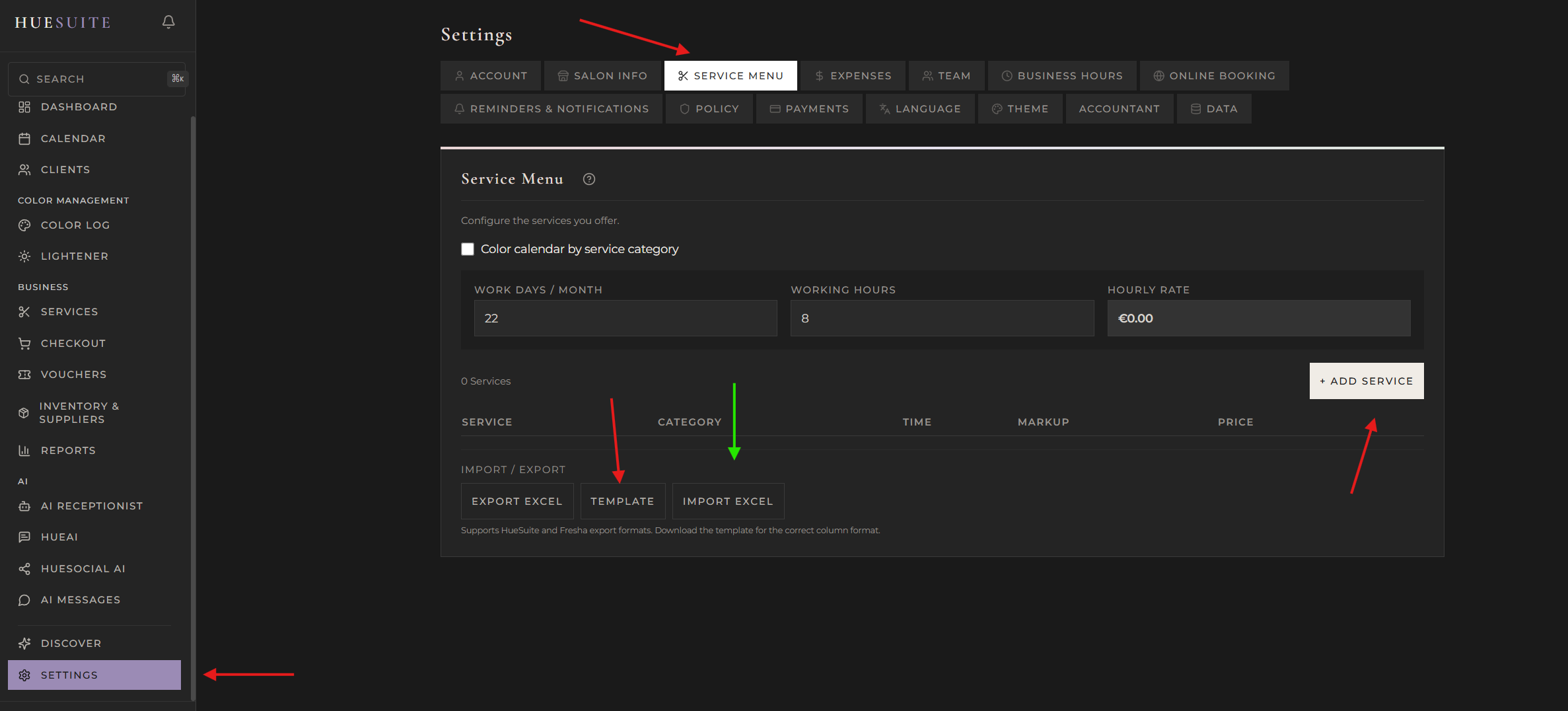
The Inventory page — Template and Import buttons are at the top.
Tip: Before importing your products, go to INVENTORY & SUPPLIERS → Suppliers tab and add your suppliers first. This way, when you fill in the Supplier column in the Excel template, HueSuite will automatically match each product to the correct supplier.
Step by step
1. Click INVENTORY & SUPPLIERS in the left sidebar
2. Click TEMPLATE at the top to download the blank Excel template
3. Open the file and add your products from Row 2 downwards (see column guide below)
4. Save the file, then click IMPORT and select your file
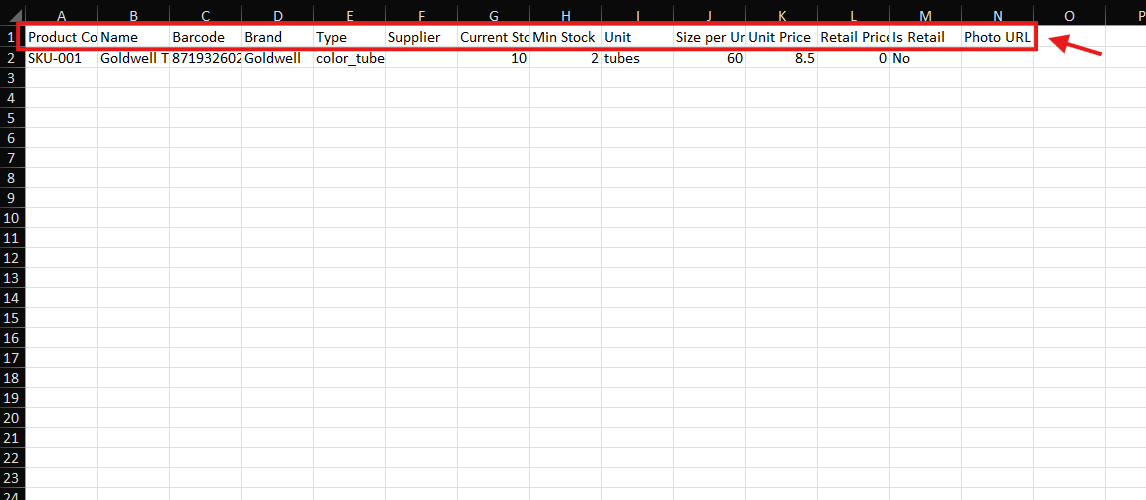
Example: Row 1 is the header — keep it as-is. Add your products from Row 2.
What each column means
| Column | What to enter | Example |
|---|
| Product Code | Your internal code or SKU | SKU-001 |
| Name | Product name | Goldwell Topchic 7N |
| Barcode | EAN or UPC barcode number | 8719326029507 |
| Brand | Brand name | Goldwell |
| Type | Product type (see important note below) | color_tubes |
| Supplier | Supplier name (optional) | |
| Current Stock | How many you currently have in stock | 10 |
| Min Stock | Minimum before you need to reorder | 2 |
| Unit | How you count them (tubes, bottles, etc.) | tubes |
| Size per Unit | ml or grams per unit | 60 |
| Unit Price | What you pay per unit | 8.50 |
| Retail Price | What you charge customers (if sold retail) | 0 |
| Is Retail | Do you sell this to clients? (Yes / No) | No |
| Photo URL | Link to a product image (optional) | |
Important: Product Types Matter
Each product must be assigned the correct type. HueSuite uses the product type to automatically pull the right products into your Color Log and Lightener Log when recording formulas. If a product has the wrong type, it won't appear where you need it.
| Product Type | What to enter in the Type column | Where it appears in HueSuite |
|---|
| Colour tubes, creams & toners | color_tubes | Color Log → Color field |
| Pigments & colour additives | pigments | Color Log → Additional Pigments field |
| Lighteners & bleach | lighteners | Lightener Log → Lightener field |
| Developers & peroxides | developers | Color Log & Lightener Log → Developer field |
| Bonders & plex treatments | bonders | Color Log & Lightener Log → Bonder field |
| Shampoo | shampoo | Inventory only |
| Conditioner | conditioner | Inventory only |
| Hair masks | mask | Inventory only |
| Styling products | styling | Inventory only |
| Tools & equipment | tools | Inventory only |
| Accessories | accessories | Inventory only |
| Everything else | other | Inventory only |
Example: If you have Goldwell Topchic 7N, it's a colour tube — set its type to color_tubes. Toners also go under color_tubes. If you have Schwarzkopf BlondMe bleach, set it to lighteners. If you have Olaplex No.1, set it to bonders. Getting this right means HueSuite will automatically show the correct products when you're recording a formula.
Understanding Stock & Cost Tracking
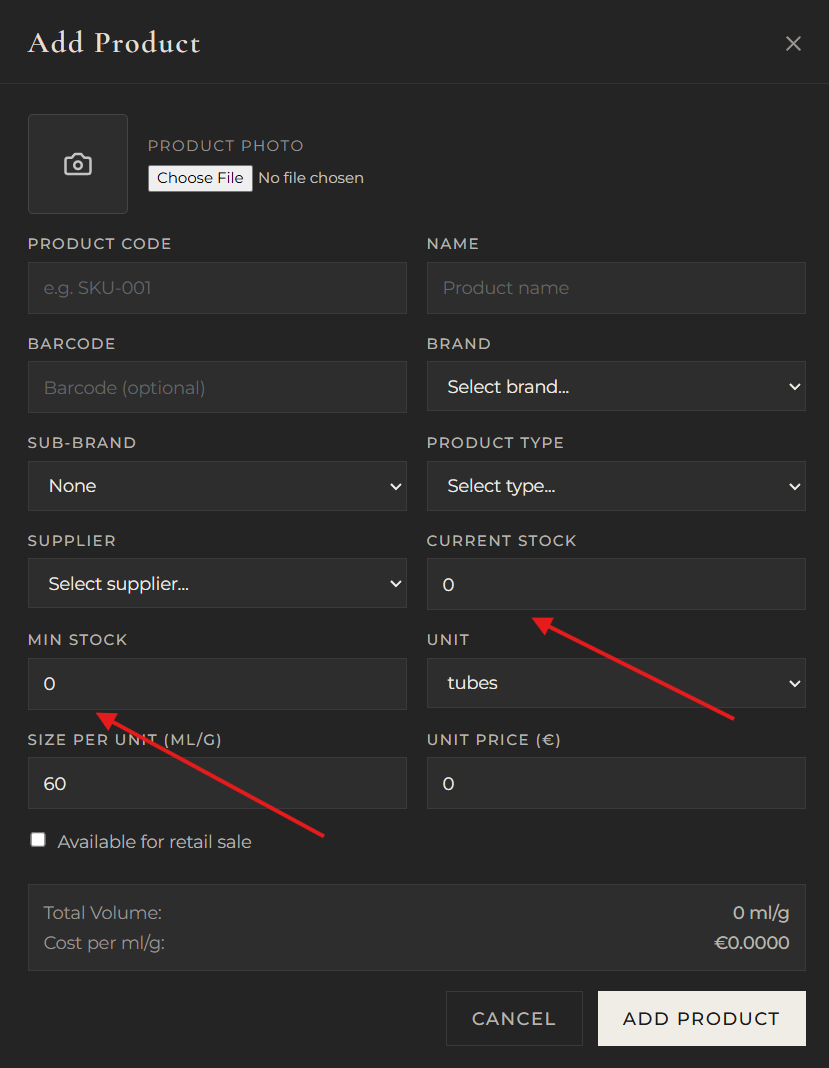
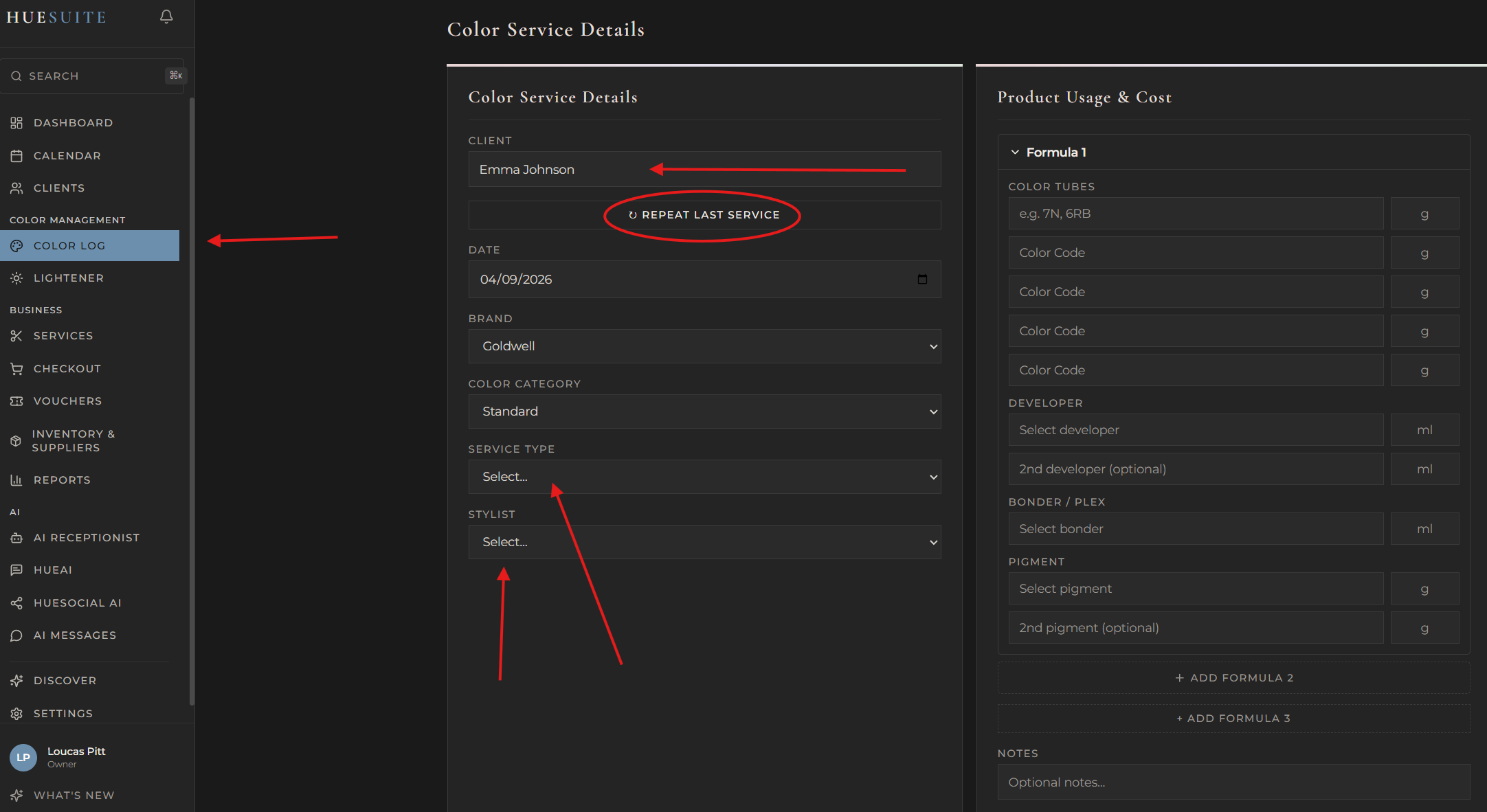
The Add Product form — key fields for stock and cost tracking.
Why this matters: HueSuite tracks your stock levels in real time and automatically calculates your cost per ml/g — so you always know exactly what each service costs you in product. Here’s how the key fields work together.
Key fields explained
| Field | What it does | Example |
|---|
| Unit | How you count this product (tubes, bottles, litres, etc.) | tubes |
| Size per Unit (ml/g) | How many ml or grams each unit contains | 60 |
| Current Stock | How many units you have right now — decimals are allowed | 1.5 |
| Min Stock | The minimum number of units you want to keep in stock | 2 |
| Unit Price (€) | What you pay per unit from your supplier | 10 |
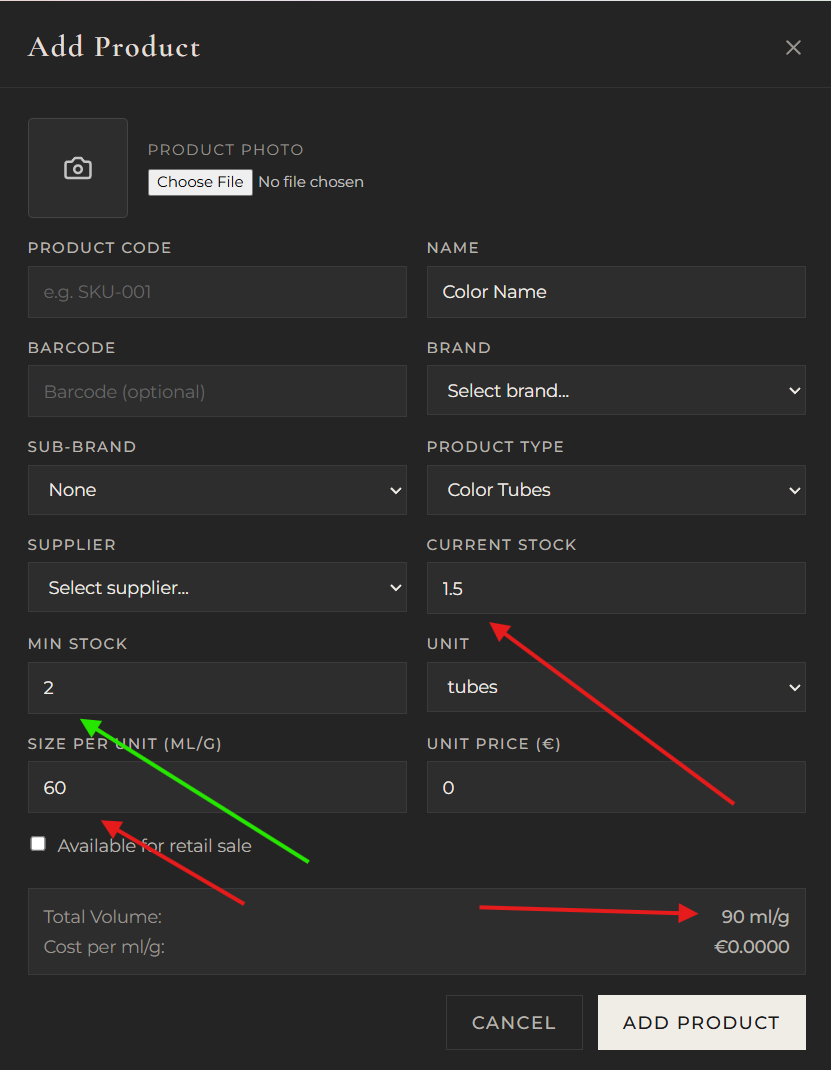
1.5 tubes × 60 ml = 90 ml Total Volume. Decimals let you track partial units.
Tip — Decimal stock: If you’re already using products, you don’t have to round. For example, if you have 1.5 tubes of a 60 ml colour, enter 1.5 as Current Stock. HueSuite calculates your Total Volume automatically: 1.5 × 60 = 90 ml.
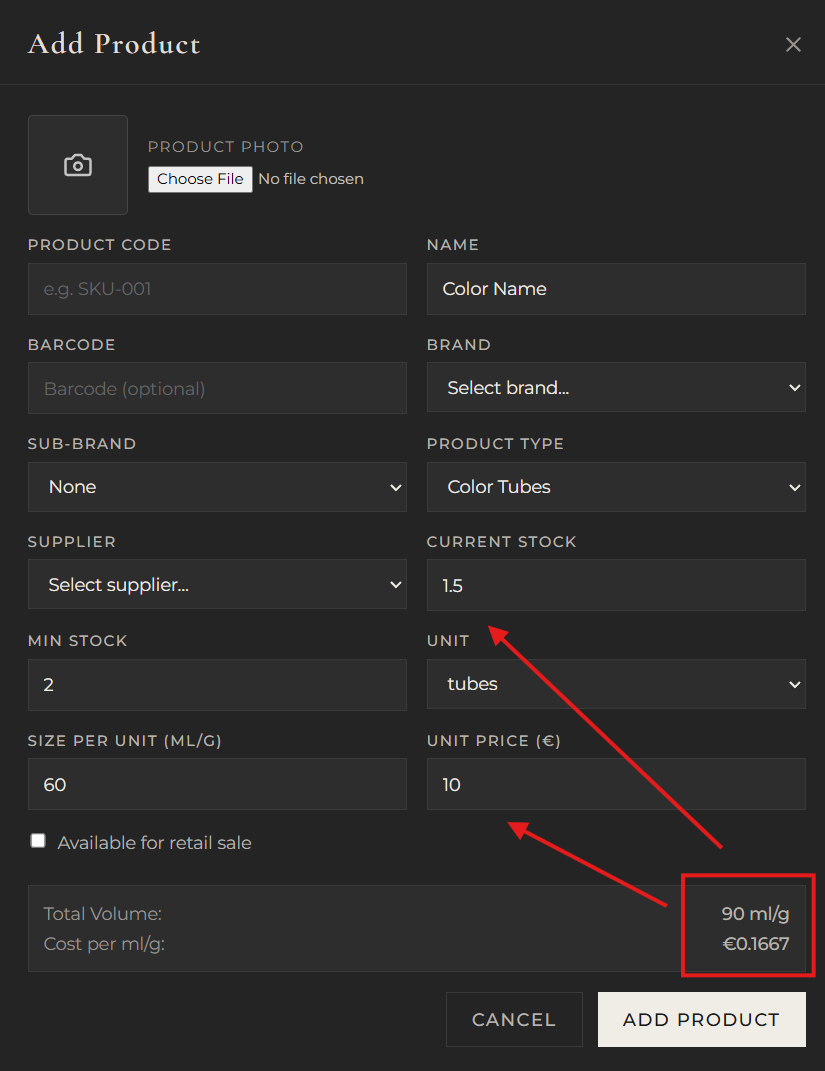
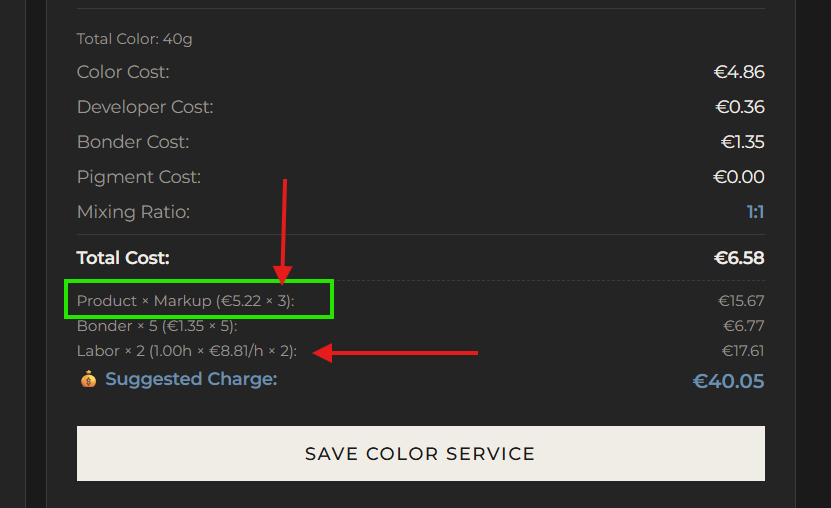
Set the Unit Price and HueSuite calculates cost per ml/g automatically.
Cost per ml/g: When you set the Unit Price, HueSuite divides it by the size per unit to give you a precise cost per ml or gram. For example, a €10 tube of 60 ml = €0.1667 per ml. This is what HueSuite uses to calculate the product cost of every formula you record.
Automatic Low-Stock Ordering
When a product’s Current Stock falls 0.5 or more below its Min Stock, HueSuite flags it as low stock. You can then generate a purchase order (PDF or Excel) with everything that needs restocking.
Filter by supplier: Go to INVENTORY & SUPPLIERS, select a supplier from the filter, then click Low Stock → Order PDF or Order Excel. HueSuite generates an order sheet containing only that supplier’s low-stock items — ready to send.